

Step 1: Make a new folder
Right click on your desktop and select “new” then “new folder” and name it “whatever” and then open it.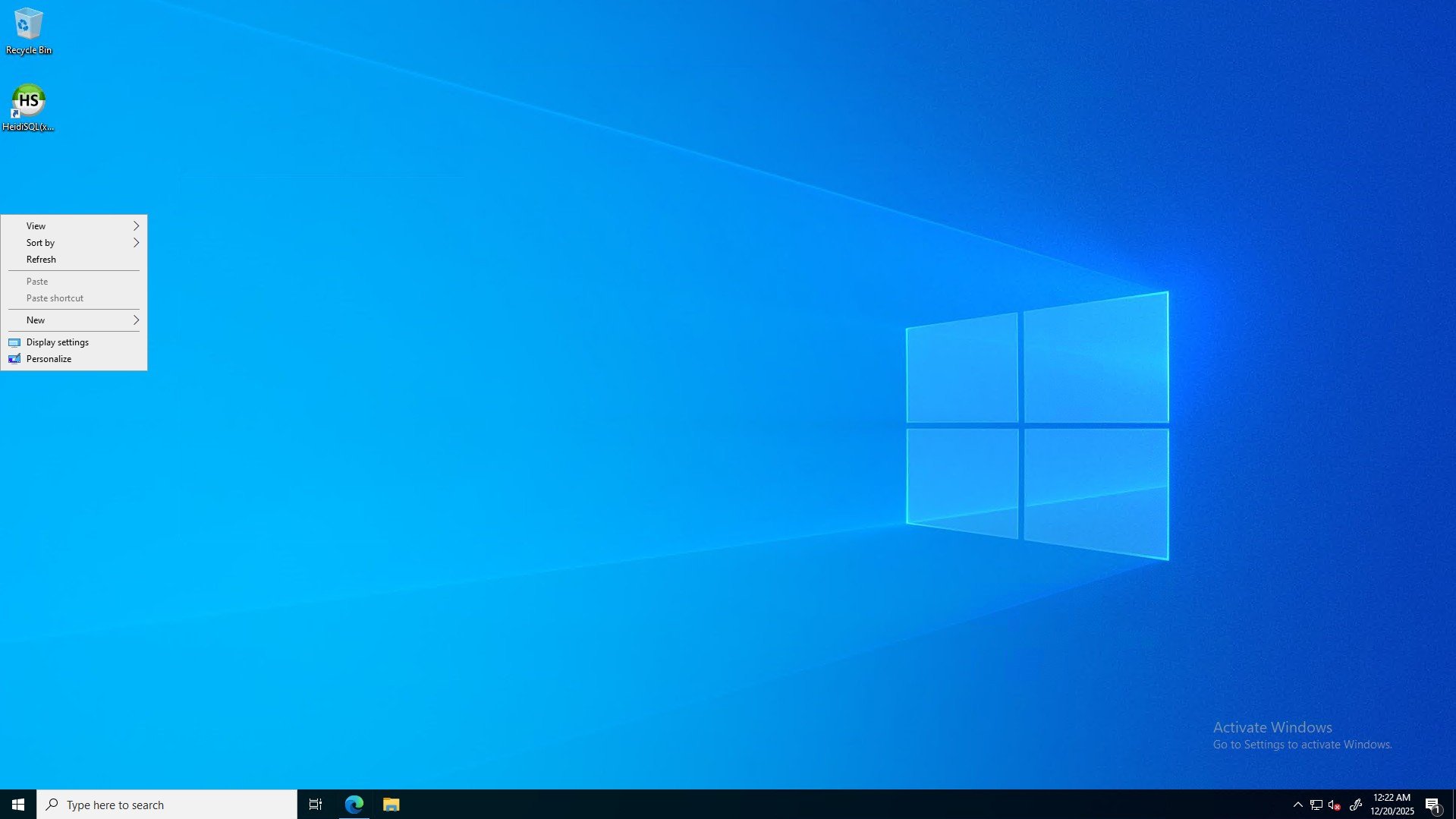
Step 2: Download FiveM server files
Go to the FiveM Runtime website and download the server files. Here’s a link to the download page: FiveM Runtime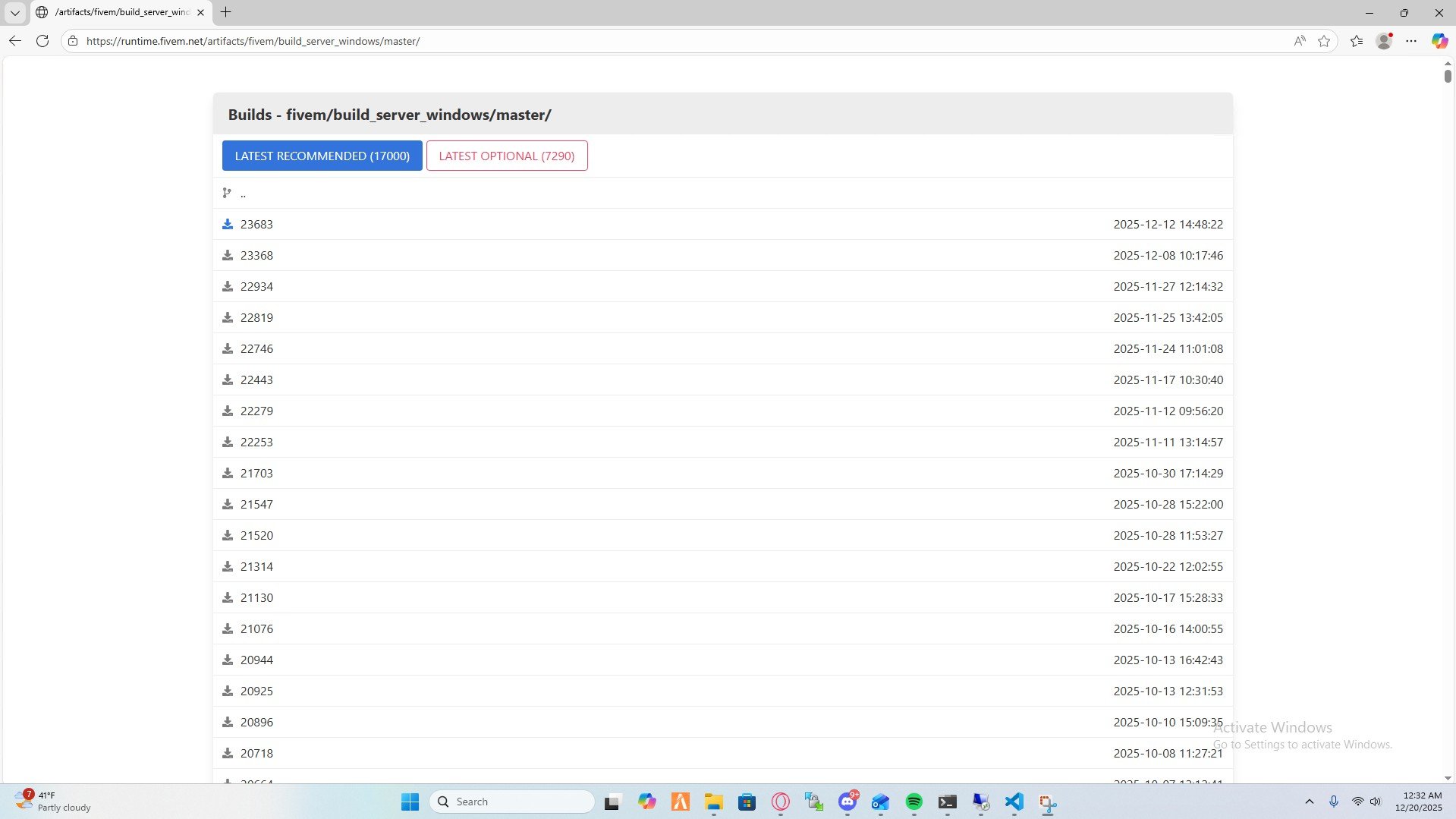
Step 3: Extract the downloaded files
Create a server folder inside the folder you made in step 1 and extract the downloaded files into it.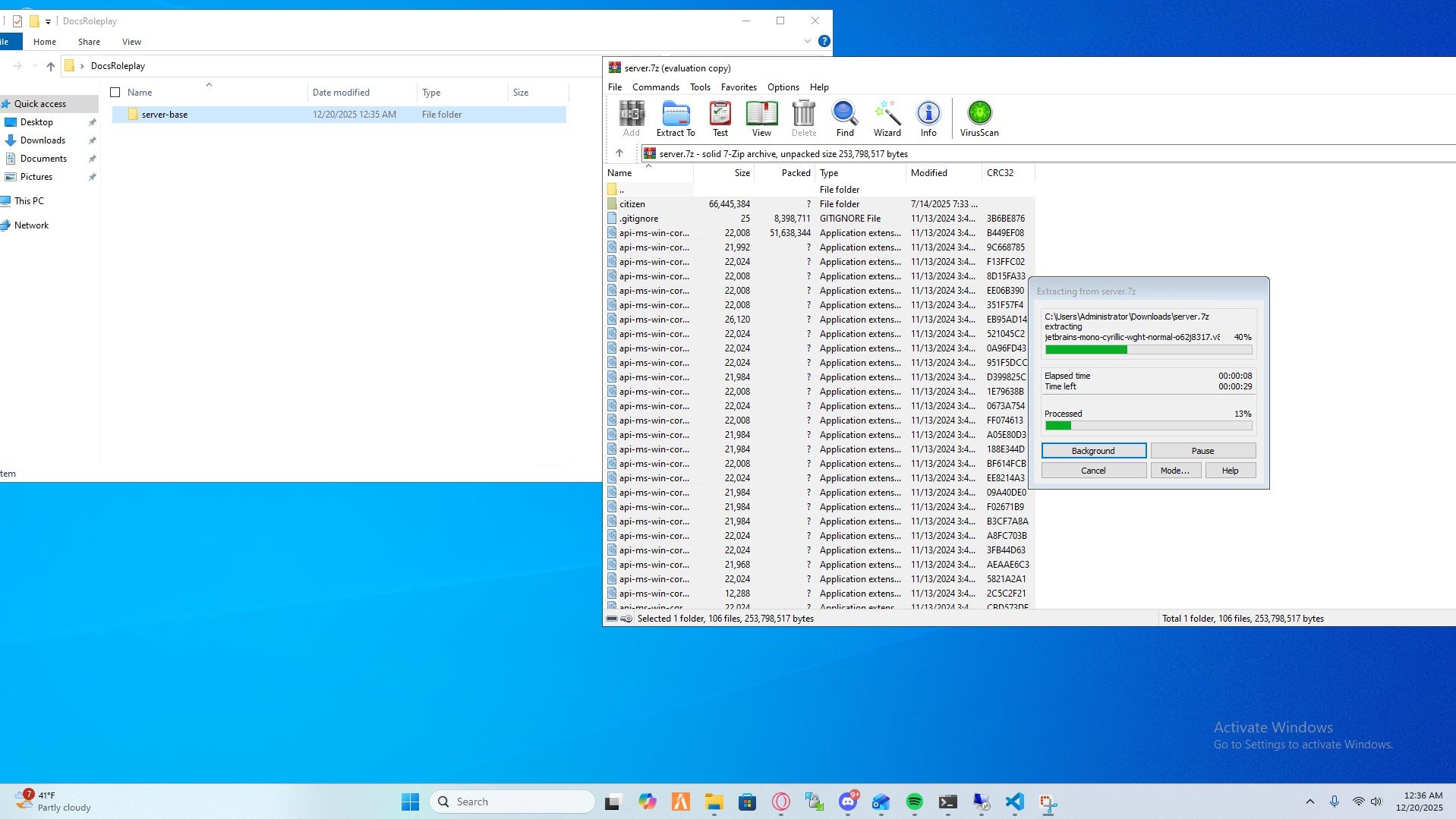
Step 4: Start your server
Open the folder you created in step 3 and find the FxServer.exe file and double click on it to start your server. After you start the server it will open a browser window with the txAdmin panel. Put in the code and proceed to step 5.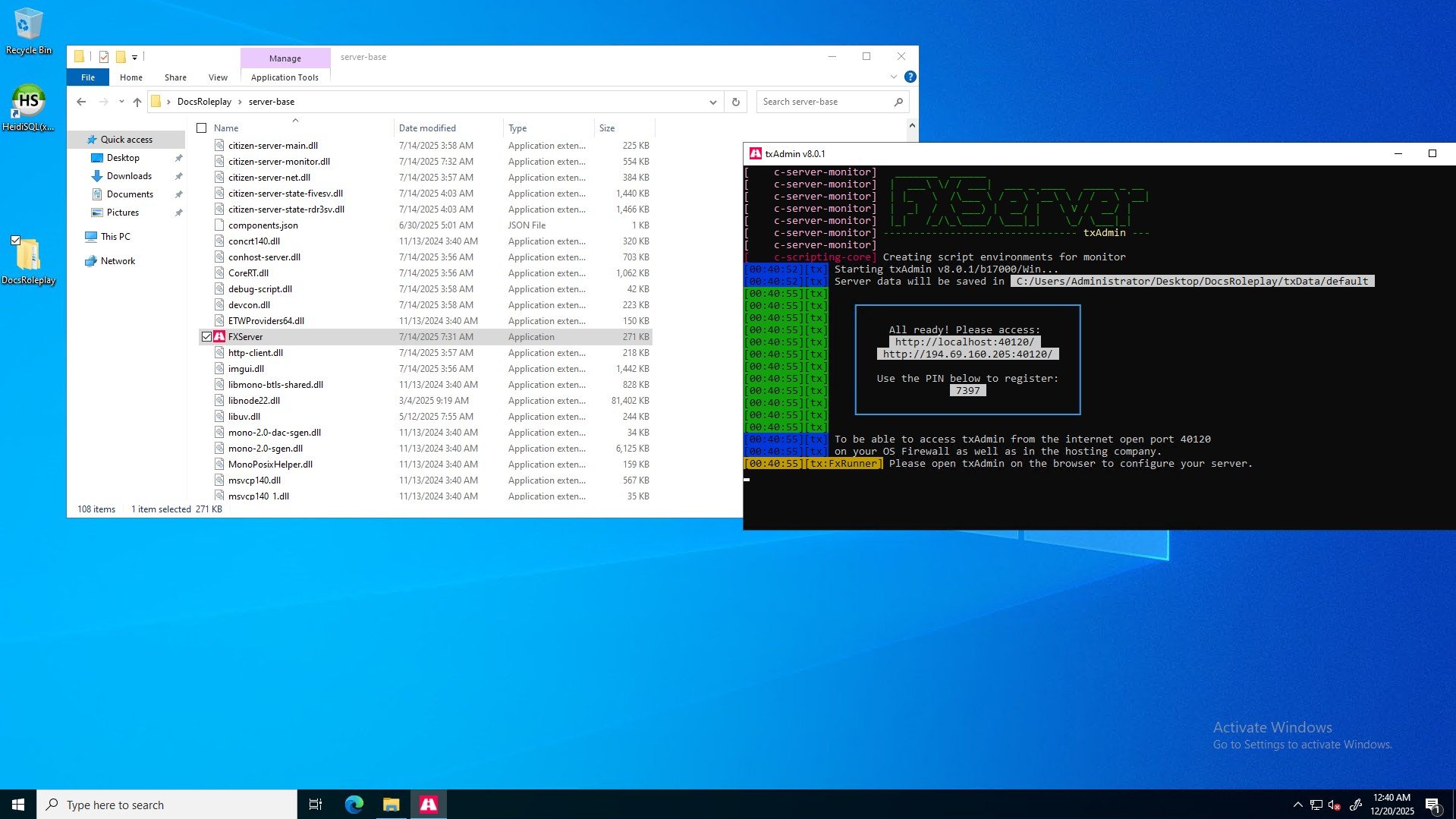
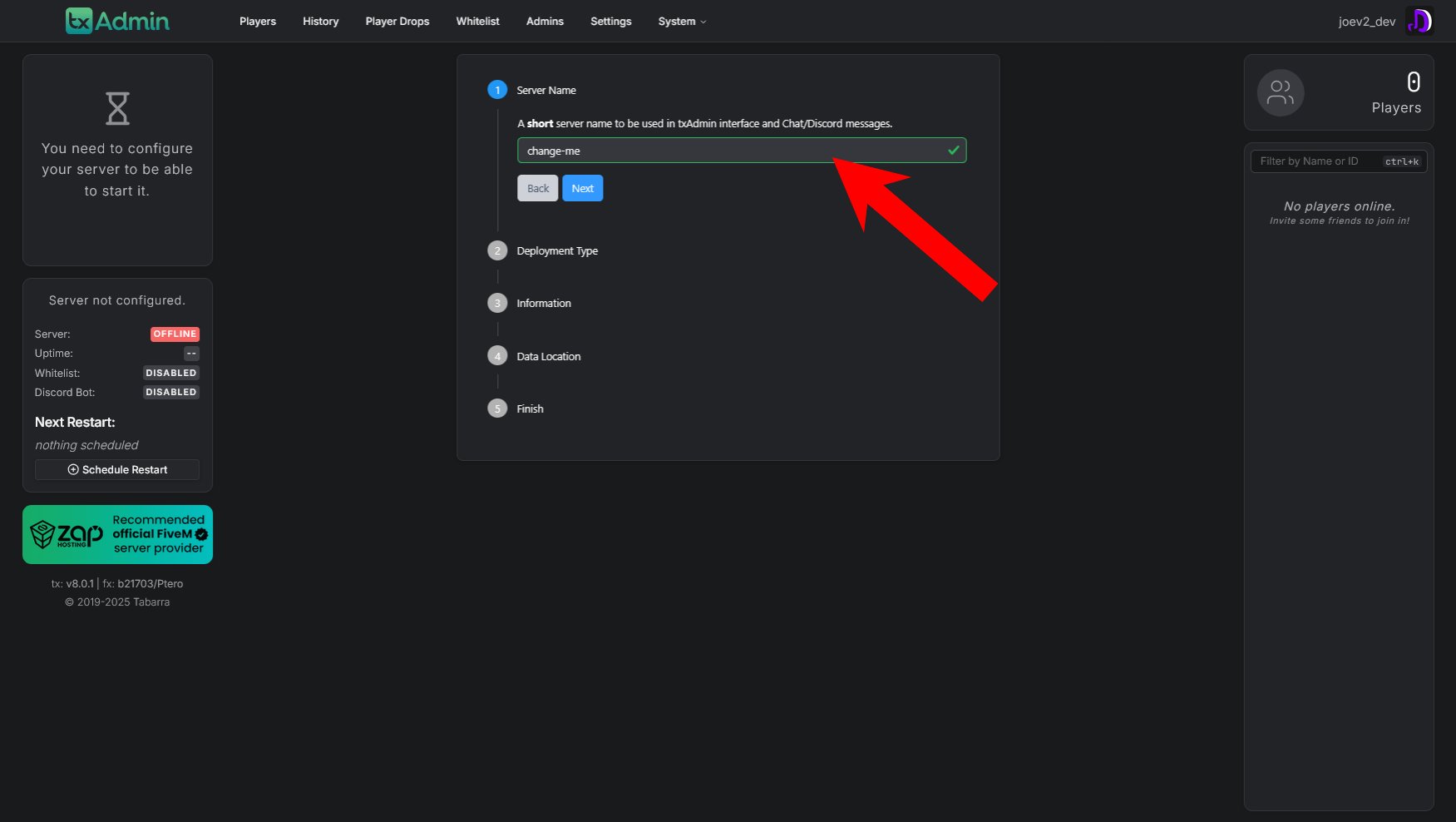
Step 5: Configure Your Server Name
After accessing the txAdmin panel, you’ll be prompted to set up your server configuration. Choose a short, memorable server name that will be used in the txAdmin interface and Chat/Discord messages (e.g.,tutorial, examplerp, dev).
Step 6: Choose Your Deployment Type
Next, you’ll need to select how you want to set up your server. txAdmin offers several deployment options: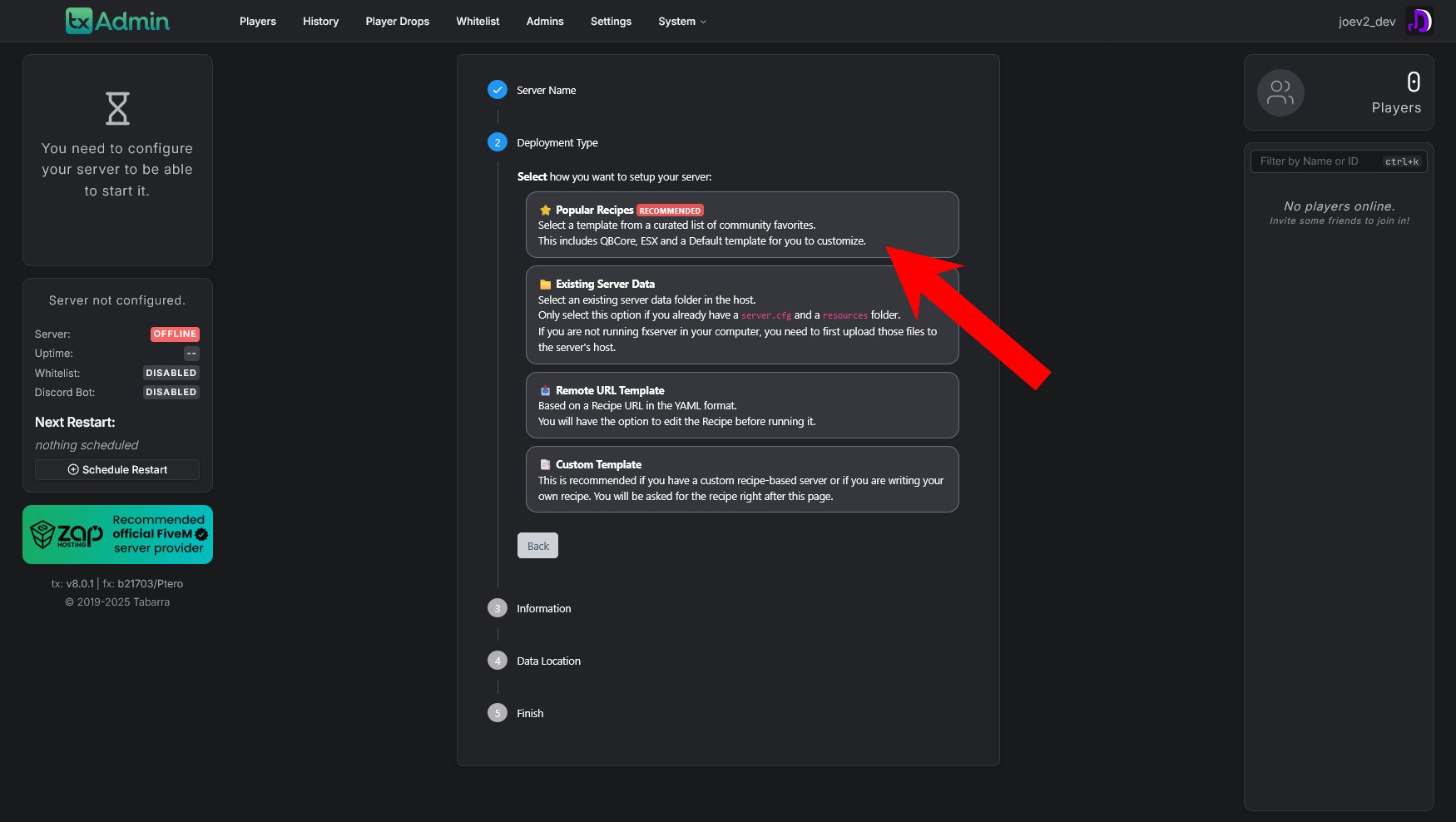
Popular Recipes (Recommended)
This is the easiest option for beginners. Select a template from a curated list of community favorites. This includes QBCore, ESX, and a Default template for you to customize.Other Deployment Options:
-
Existing Server Data: Select an existing server data folder on the host. Only use this if you already have a
server.cfgand aresourcesfolder. - Remote URL Template: Based on a Recipe URL in the YAML format. You’ll have the option to edit the Recipe before running it.
- Custom Template: Recommended if you have a custom recipe-based server or if you are writing your own recipe. You will be asked for the recipe right after this page.
For most users, Popular Recipes is the recommended choice as it provides tested and working server configurations.
Step 7: Review Recipe
After selecting your deployment type, you’ll be presented with the recipe configuration. This shows you the YAML configuration that will be used to set up your server.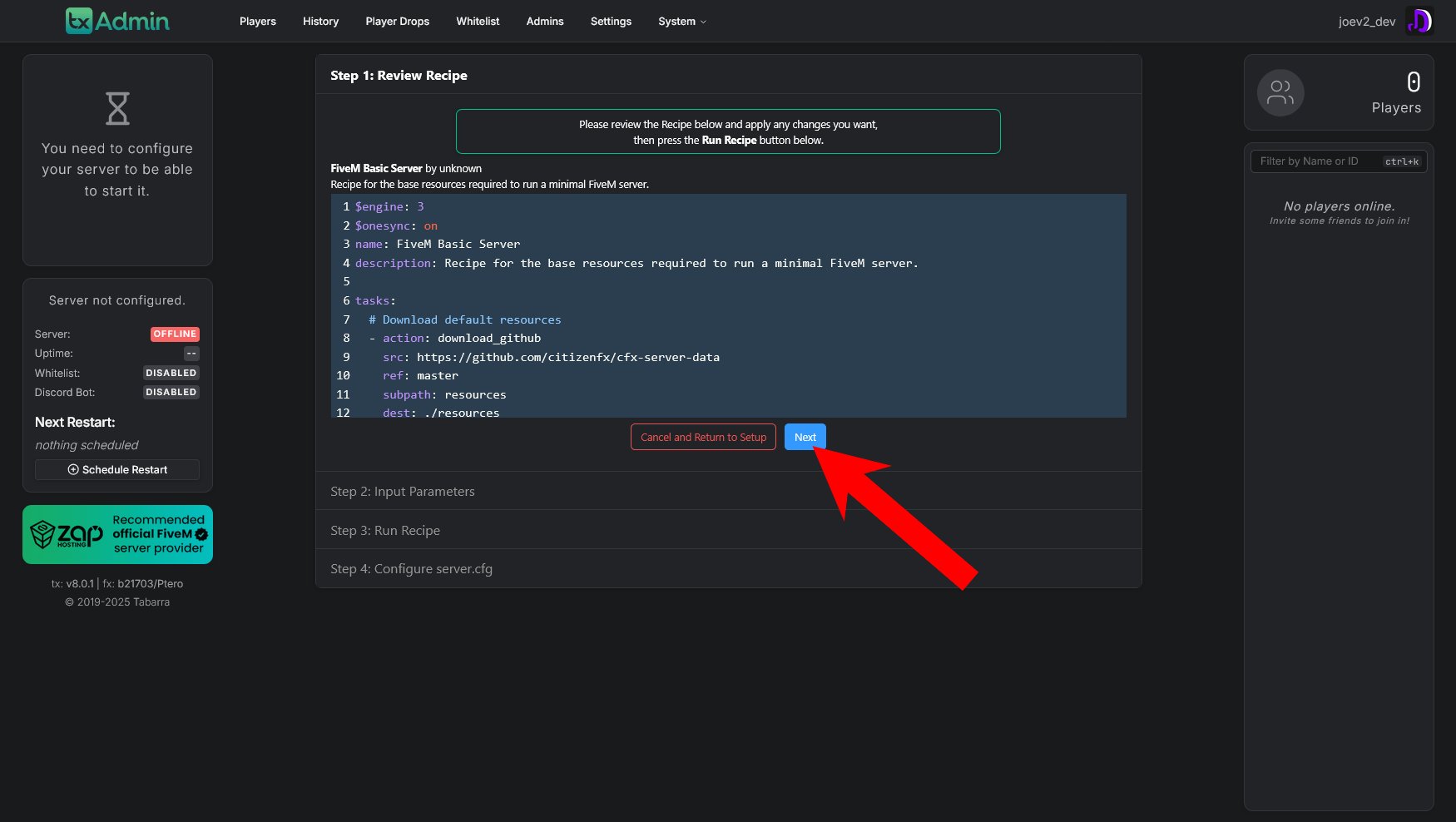
- Engine version (e.g.,
$engine: 3) - Server name and description
- Tasks that will be executed (downloading resources, configuring files, etc.)
- Source repository information (where resources will be downloaded from)
Step 8: Enter Server Registration Key
Now you need to enter your FiveM Server Registration Key (formerly known as License Key). This key is required to run a FiveM server.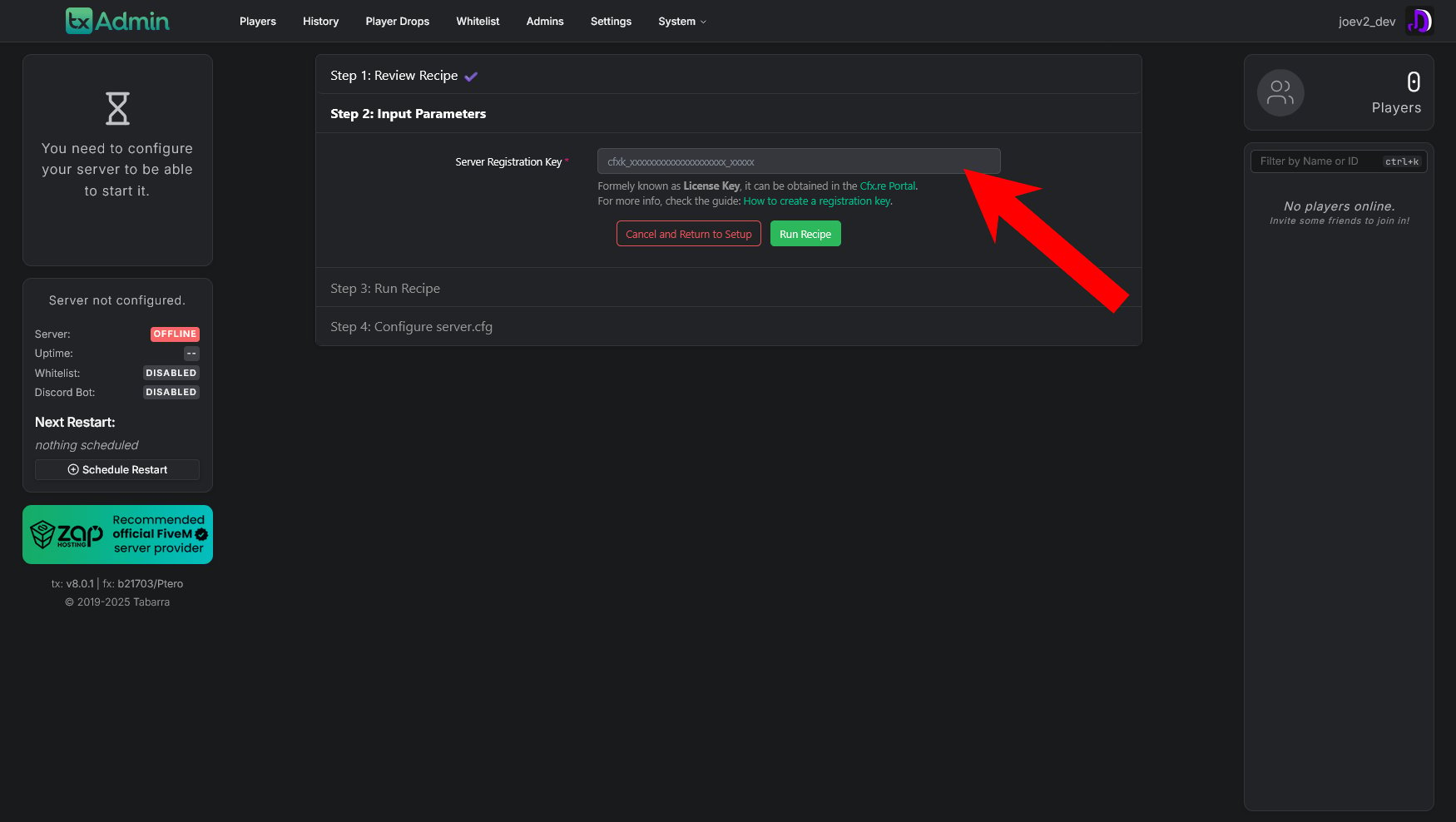
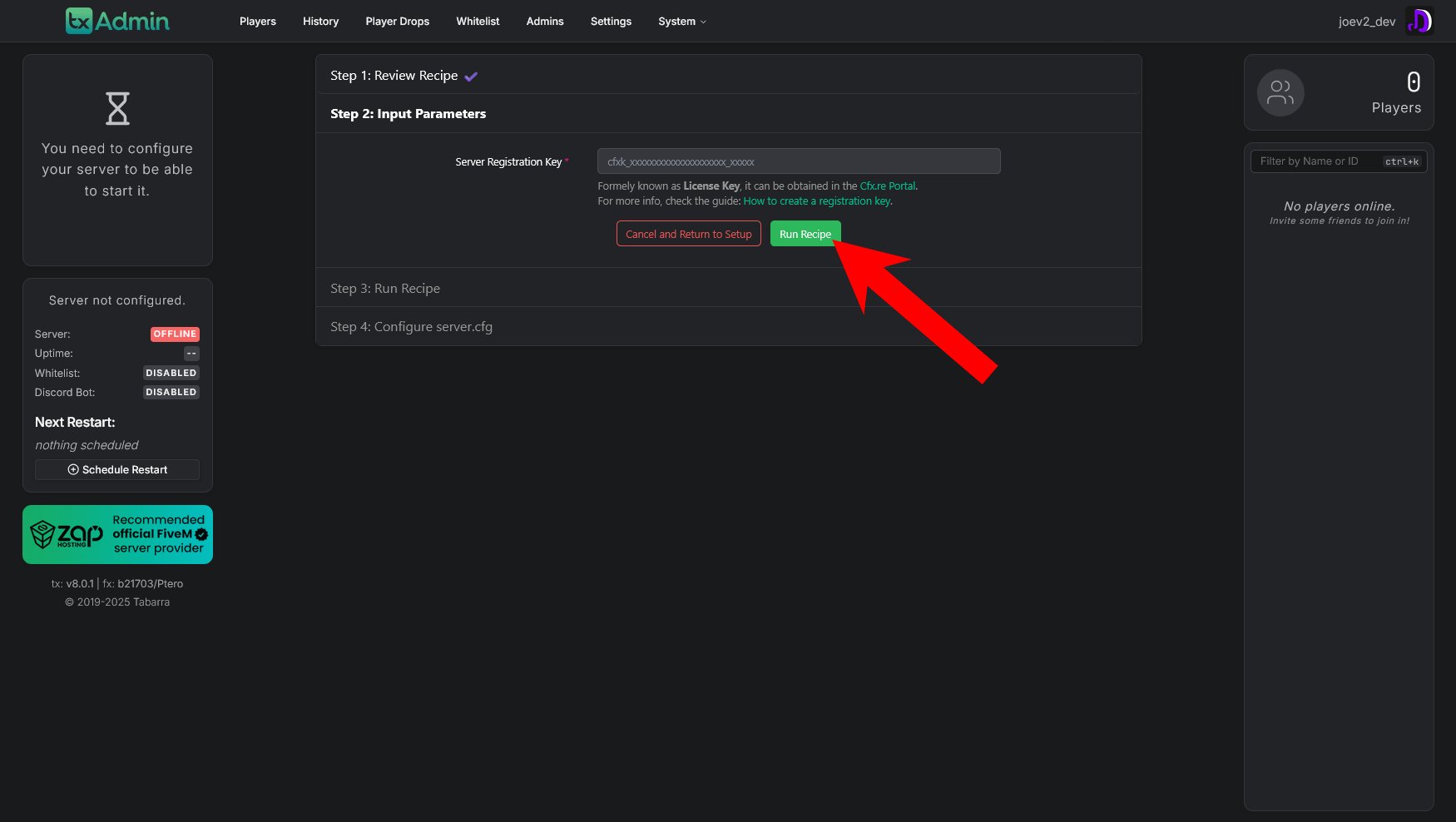
If you don’t have a registration key yet, visit the Cfx.re Portal to create one. For more information, check the guide: How to create a registration key.
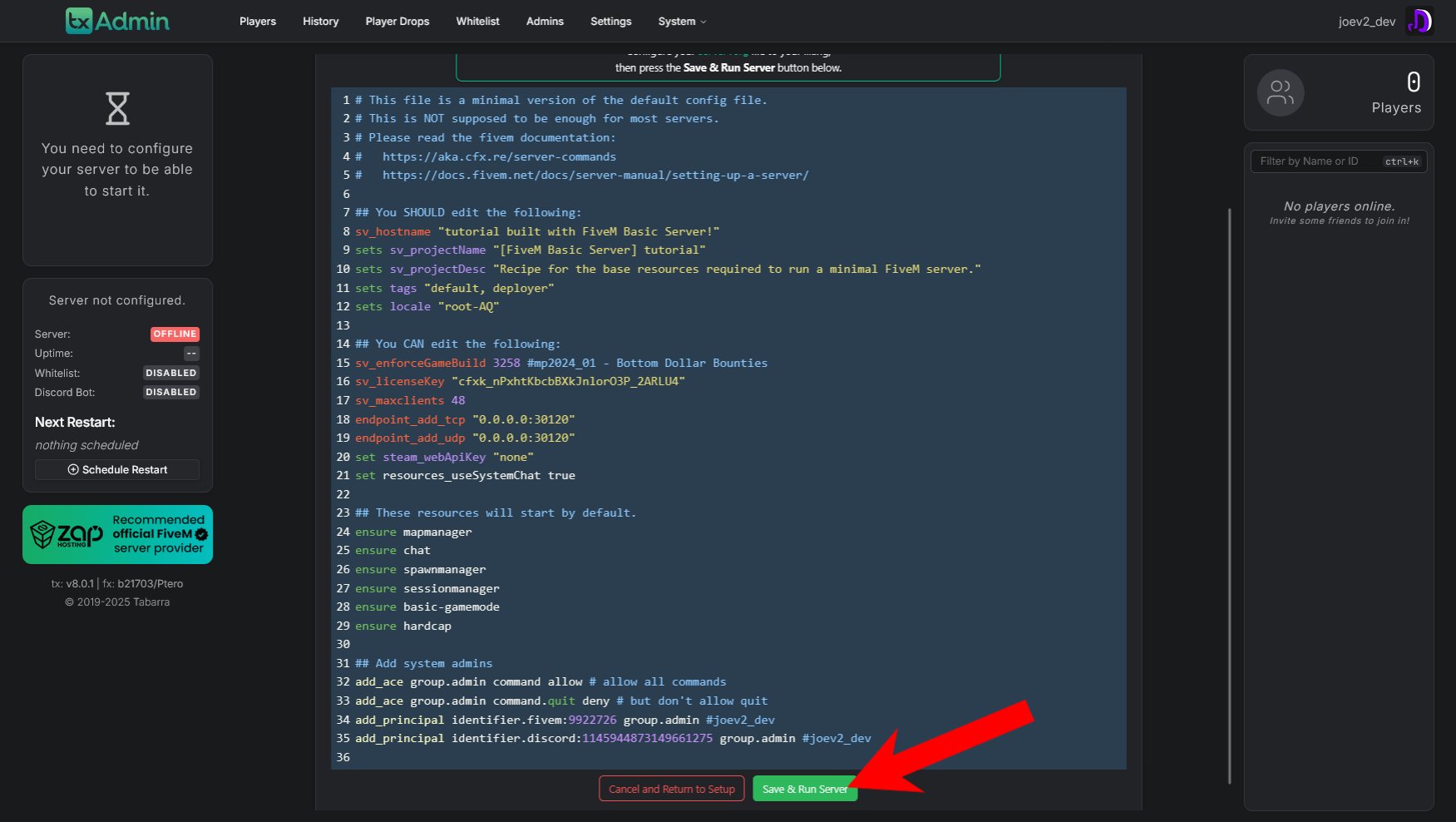
Step 9: Configure server.cfg
After the recipe runs, you’ll be presented with theserver.cfg file editor. This is your server’s main configuration file where you can customize various settings.
Step 10: Port Forward Your FiveM Server
Coming Soon!Congratulations! If you’ve followed all the steps correctly, your FiveM server should now be up and running. You can access your txAdmin panel to manage your server, view players, and configure additional settings. Everything should be good to go!